
How to Add an Animated Diagram to Your Slides
By Rajeev Ranjan · Updated November 2026 · 6 min read
An animated diagram keeps an audience with you in a way a static one rarely does: they watch the request move through the system while you talk. The only awkward part is getting it into the slide in a form that actually plays. This guide covers the choices that matter: GIF or video, the right shape and size, and how to insert it in the common presentation tools.
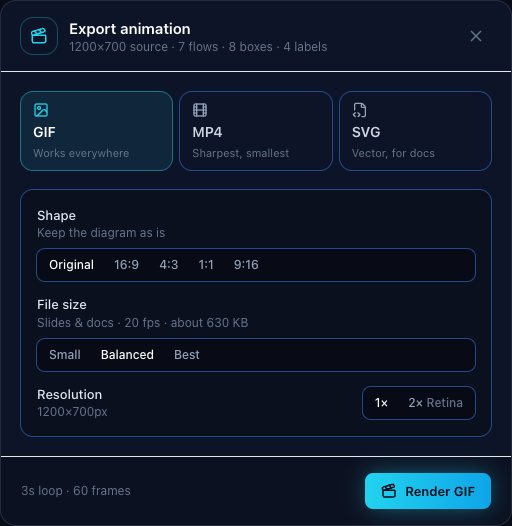
GIF or video? A quick decision
Both work in slides. Pick based on where you will present:
| GIF | MP4 video | |
|---|---|---|
| Plays automatically and loops | Yes, by itself once the slide is shown | Only if you set the video to start automatically and loop |
| Where it works | Almost everywhere, including chat and email | Slides, web pages and social posts |
| Sharpness | Good, with up to 256 colours | Sharpest, with smooth glows |
| File size | Larger for the same quality | Smaller for the same quality |
| Watch out for | Some editors show only the first frame until you present | A browser that cannot record MP4 gives you WebM, which PowerPoint may not play |
If you are unsure, export both. It takes a few seconds each, and a GIF is the safest fallback if a video refuses to play on the venue's computer.
Step 1: Match the diagram to your slide
Slides are almost always widescreen. Start a new diagram with New → Widescreen (16:9), or build in any shape and choose 16:9 under Shape in the export dialog. That crop adds matching margins so the animation fills a 16:9 slide without stretching. Use 4:3 only for older projectors.
DiagramPulse diagrams have a dark background, so they look best on a dark or neutral slide, or inside a clearly framed image area, rather than dropped onto a white page edge to edge.
Step 2: Slow it down for a live audience
Animation that looks lively on your screen can feel frantic on a projector. For presenting:
- Use a loop of 4 or 5 seconds (the buttons are under the canvas).
- Lower the flow speed to 1× or even 0.5× on the paths you will talk about.
- Use the Subtle preset for formal settings and Neon when you want energy.
- Number the story with step badges (key N) so you can say "start at step one" and the audience knows where to look.
Step 3: Pick the file size
Under File size the GIF export offers three presets:
- Small (15 frames per second, up to 960 pixels wide): for email and chat.
- Balanced (20 fps, up to 1280 pixels): the right choice for most slides and documents.
- Best (30 fps, up to 1920 pixels): for large screens or when the diagram has a lot of small text.
The dialog shows an estimate of the file size before you render. For a three-second diagram of about 1200 × 700 pixels, expect roughly 0.6 MB for Small and about 1.4 MB for Best. For MP4, choose 30 or 60 frames per second; 30 is plenty for a diagram.
Step 4: Insert it
PowerPoint
GIF: Insert → Pictures → This Device, then pick the file. In the normal editing view it may look still; start the slide show and it plays and loops. MP4: Insert → Video → This Device. Under Playback, set Start: Automatically and tick Loop until Stopped.
Google Slides
GIF: Insert → Image → Upload from computer. It animates when you present. MP4: upload the file to Google Drive, then Insert → Video → Google Drive. In Format options → Video playback, tick Autoplay when presenting and Loop.
Keynote
Drag the GIF or the MP4 onto the slide. For video, open the Movie inspector and set Start Movie to Automatically and Repetition to Loop.
Menus change between versions
The exact menu names above vary slightly between app versions, but the idea is the same: insert the file, then set it to start automatically and loop.
Common problems
- "It shows a still picture." Many editors only animate GIFs in presentation mode. Start the slide show to check.
- "The video will not play." If your browser could not record MP4, the export is WebM. Use Chrome or Edge, or export a GIF instead.
- "The file is too big to email." Choose the Small GIF preset, or send an MP4, which is smaller for the same quality.
- "The text looks soft." Use the Best preset, or MP4, and make sure the box labels are not tiny to begin with.
- "The export stopped halfway." MP4 is recorded in real time, so keep the browser tab visible until it finishes.