
Build a Diagram from Text with Quick Build
By Rajeev Ranjan · Updated November 2026 · 6 min read
The fastest way to draw a flow is not to draw it. Quick build turns a few lines of text into boxes, arrows and a tidy layout, with logos added for names it recognises. You can then edit anything by hand. If you have used Mermaid, much of the syntax will look familiar.
Open the editor and press Quick build in the top bar, or use ⌘K (Ctrl+K on Windows and Linux).
The basics: one chain per line
Write names separated by arrows. Each name becomes a box and each arrow becomes a connector:
order -> kafka -> message service -> whatsapp statusThat makes four boxes joined in a row. Names can contain spaces, and you do not need quotes. A name you use again later, in any capitals, refers to the same box, which is how you branch and merge:
order -> kafka -> message service
kafka -> analytics
Here kafka appears on two lines but is one box with two outgoing arrows. You can also put several chains on one line, separated by a semicolon.
Arrow styles that all work
| You type | Meaning |
|---|---|
a -> b, a --> b, a ---> b | An arrow from a to b |
a => b, a ==> b, a → b | The same, in other styles |
a -->|yes| b | An arrow with the label “yes” |
Use whichever you like; they all draw the same connector. To put a label on an arrow, write it between pipes straight after the arrow, for example checkout ->|card| payments. The label is placed on the connector as a small text tag.
Choosing a shape
By default a box is rounded. Put the name in brackets to choose a shape, the way Mermaid does. You can add a short id before the bracket and refer to it later.
| You type | Shape |
|---|---|
api[API gateway] | Rounded box with the label “API gateway” |
db[(Orders DB)] | Database cylinder |
start((Start)) | Oval |
check{Valid?} | Diamond (a decision) |
worker(Worker) | Rounded box |
Quick build also guesses sensibly when you do not specify. Names that mention a database or store (Postgres, MySQL, Mongo, Redis, DynamoDB, S3, a cache, a warehouse and similar) become a database cylinder, and a name that ends in a question mark, such as Approved?, becomes a diamond for a decision.
Names of well-known tools get their logo automatically: Kafka, Postgres, Redis, Docker, Kubernetes, nginx, WhatsApp, Stripe and many more.
Direction, comments and layout
- Direction. Choose Left → right or Top → bottom with the toggle in the dialog, or start your text with
graph LR(left to right) orgraph TD(top to bottom).flowchart LRworks too. - Comments. Anything after
#or//on a line is ignored, which is handy for notes. - Layout. Boxes are placed automatically and the page grows to fit. You can drag anything afterwards.
Three examples to paste
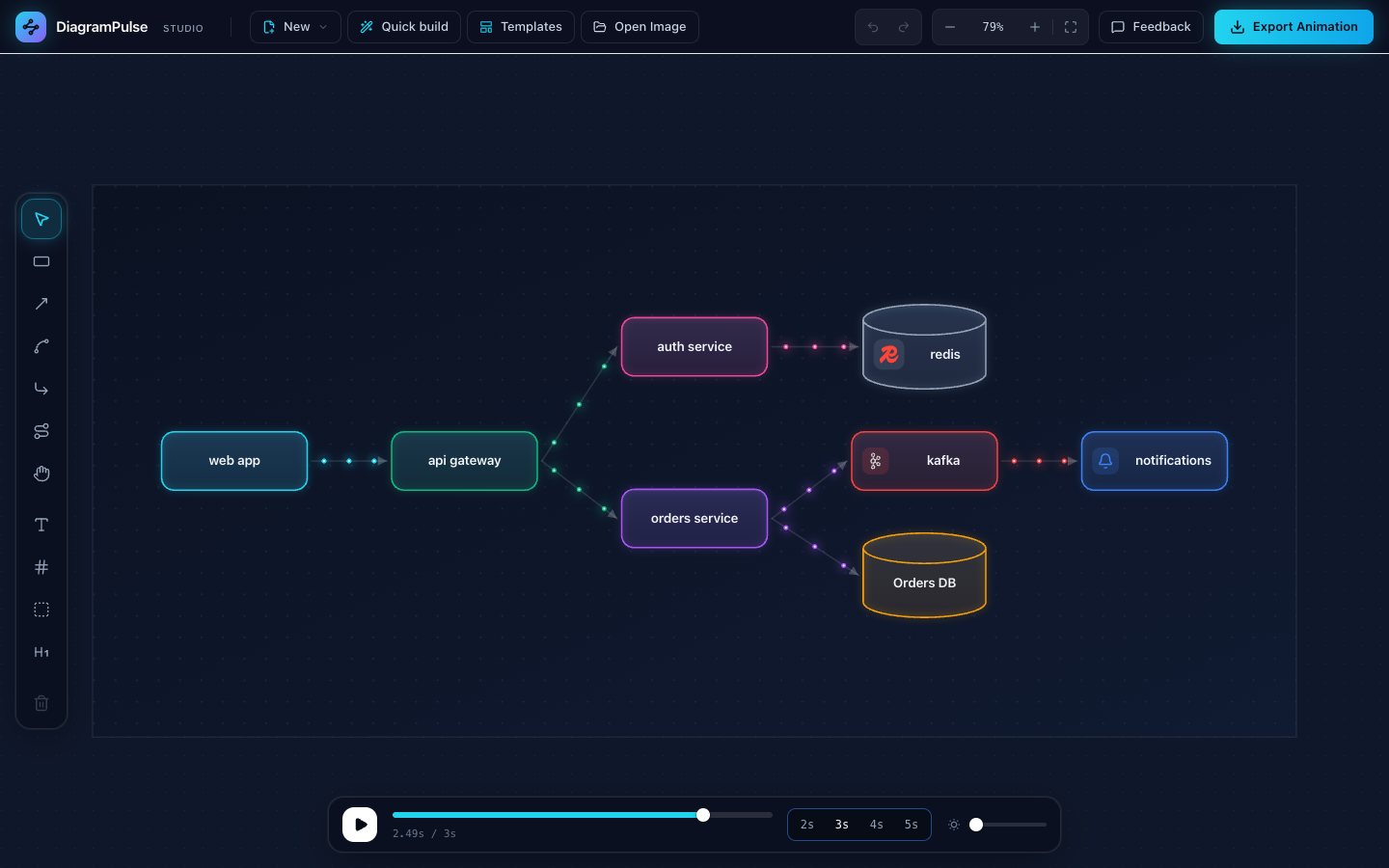
A microservice request path
graph LR
web app -> api gateway -> orders service
orders service -> postgres[(Orders DB)]
orders service -> kafka -> notifications
api gateway -> auth service -> redis
This is the diagram in the screenshot above.
A decision with a loop back
graph TD
start((Start)) -> submit request -> Approved?
Approved? -->|yes| ship it
Approved? -->|no| revise -> submit request
Approved? is reused on three lines, so it is one diamond with two exits, and the last line sends the no branch back to the start of the process.
A data pipeline
apps -> kafka -> spark -> warehouse[(Snowflake)] -> dashboards
databases -> kafka
What happens after you press Build
- The boxes, arrows and layout appear on a fresh page, sized to fit, and animate straight away.
- If you already had a diagram open, Quick build asks before replacing it. A heading you wrote stays and is moved to suit the new layout.
- Everything is a normal, editable diagram from then on: change colours, swap shapes, restyle the flow, add numbered steps. See the architecture diagram guide for what to do next.
- Quick build supports up to 100 boxes. For a bigger system, split it into several diagrams.
While you type, the dialog shows a live preview of the boxes it understood, so you can fix a typo before building.