
Import a Diagram from Excalidraw or a Screenshot
By Rajeev Ranjan · Updated November 2026 · 6 min read
You rarely start from nothing. There is usually already a diagram in an Excalidraw file, a slide, a wiki page or a whiteboard photo. DiagramPulse can bring it in and rebuild it as its own clean boxes and arrows, which are then easy to restyle and animate. It does not paint moving dots over your original picture, because a busy or hand-drawn background rarely looks good that way (though that option exists too).
Everything on this page happens in your browser. Your picture is not uploaded.
From Excalidraw: the exact route
If your diagram is in Excalidraw, you do not need a screenshot at all, because Excalidraw's own data carries the structure.
- In Excalidraw, select the shapes you want (or press Ctrl/⌘+A) and copy them.
- Open the DiagramPulse editor and paste (Ctrl/⌘+V). Or save the drawing as a
.excalidrawfile and use Open Image.
What carries over:
- Rectangles, ovals and diamonds become boxes, with the text inside them as the label. Well-known names pick up a logo.
- Arrows and lines become connectors. If an arrow was attached to shapes in Excalidraw, it stays attached to the matching boxes. The arrowhead decides the direction.
- Text you placed on its own becomes a text label.
What does not: embedded images, freehand drawing and frames are skipped (you are told how many). The hand-drawn look is not kept: boxes come in with DiagramPulse's clean style. Very large drawings (more than about 10,000 units across) are refused, so select just the diagram first.
From a screenshot or photo
Drag a PNG or JPG onto the editor, paste an image from your clipboard, or use Open Image. You are offered two choices:
- Rebuild as a clean diagram (recommended). DiagramPulse looks for boxes and arrows in the picture and redraws them in its own style.
- Animate on top of the picture. The original image stays exactly as it is and you trace arrows over it yourself. Use this for pictures that are not really box-and-arrow diagrams, such as an illustration or a map.
If you choose to rebuild, the picture is analysed in your browser. It finds closed shapes (rectangles, ovals and diamonds), finds arrows and works out which way each points from its arrowhead, joins each arrow to the nearest boxes, and reads the text with an on-device text reader. The first time, the text reader downloads a few megabytes from this site and keeps them for next time.
The review step: where you stay in control
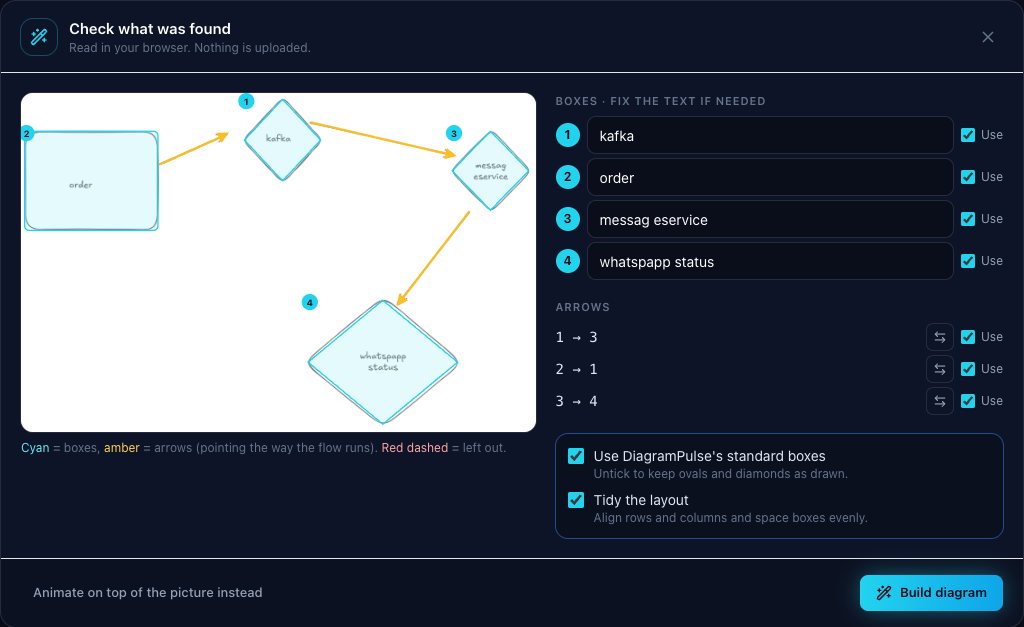
Automatic reading is good but not perfect, especially with handwriting, so you always get a review screen before anything is built. In the screenshot above, a hand-drawn sketch was read mostly correctly, but two labels came out as “messag eservice” and “whatspapp status”, which is exactly what the review is for.
- Fix the text. Each detected box has an editable label.
- Untick “Use” beside anything that was detected by mistake. Excluded items show in red dashes on the picture.
- Swap an arrow with the two-arrows button if it points the wrong way. Cyan outlines are boxes and amber arrows point the way the flow runs.
- Two options. Use DiagramPulse's standard boxes gives every box the clean rounded look; untick it to keep ovals and diamonds as drawn. Tidy the layout aligns rows and columns and spaces the boxes evenly.
Press Build diagram when it looks right. The result is a normal editable diagram, so you can keep refining it.
Getting the best result
- Use clean, high-contrast images. A screenshot of a digital diagram reads far better than a photo of a whiteboard.
- Closed shapes and visible arrowheads. Boxes need a complete outline, and arrows should have a clear head so the direction is right.
- Crop to the diagram. Remove window chrome, captions and anything that is not part of the flow.
- Expect to fix some handwriting. Typed text reads very well; cursive and small handwriting does not.
Limits worth knowing
- Pictures up to 30 MB and about 50 megapixels are accepted.
- If a picture has more than 120 shapes, it is probably a photo or a texture rather than a diagram, and you are asked to crop or simplify it.
- Unusual shapes (hexagons, clouds, stacked databases) are read as a rectangle, oval or diamond. You can change the shape afterwards in the side panel.
- Elbow-shaped arrows are simplified to straight or gently curved connectors. Switch a connector to Elbow in the side panel if you want the corner back.
Once it is in, head to the architecture diagram guide to make it move, or the format guide to choose how to export it.